RAM Buying Guide
RAM (Random Access Memory), often simply called memory, is your PC’s short-term workspace. It temporarily stores the data and programs your computer is actively using or running in the background so the processor can access them quickly. More RAM allows your PC to handle more tasks at once, making multitasking, gaming, content creation and demanding software more efficient. Unlike an SSD or hard drive, RAM only stores data while the computer is powered on.
How Much RAM Do You Actually Need in 2026?
- 8GB: bare minimum for very light everyday use. Good for basic office work, web, and older systems, but it is easy to outgrow.
- 16GB: the smart buy for most people. Best for study, office, general desktop use, and everyday multitasking.
- 32GB: the sweet spot for modern gaming, streaming, heavier creative work, and longer-term value.
- 64GB or more: best for workstation loads, big media projects, VMs, larger datasets, and AI workflows.
Types of RAM: What Fits Your Computer?
Desktop RAM (UDIMM)
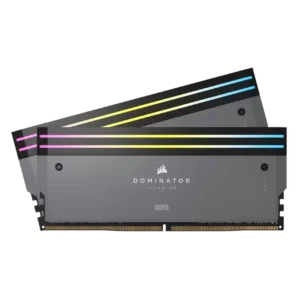
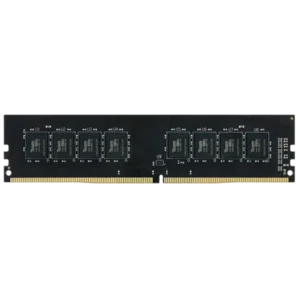
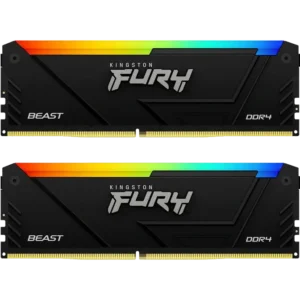
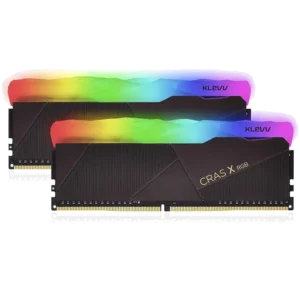
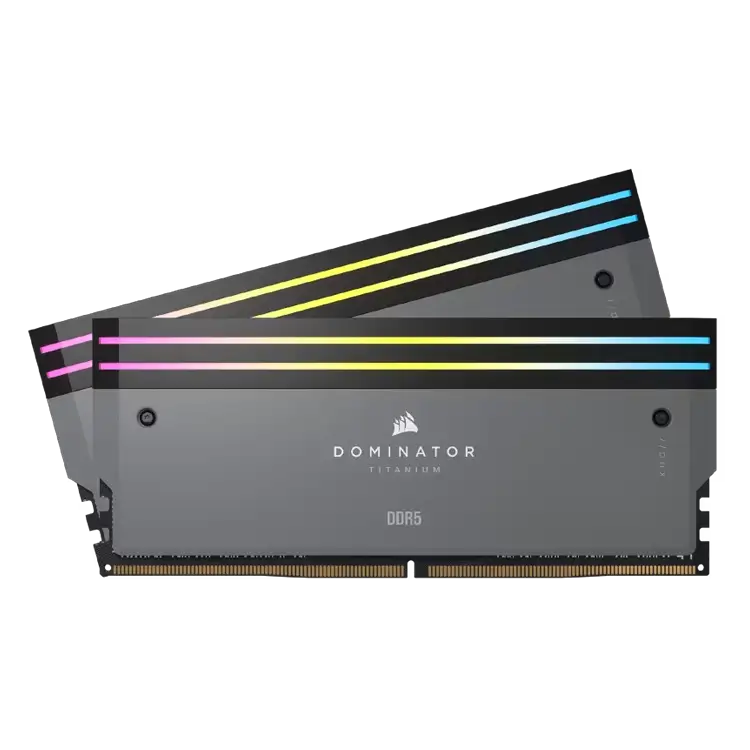
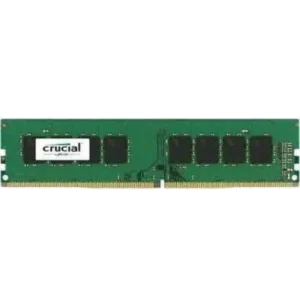
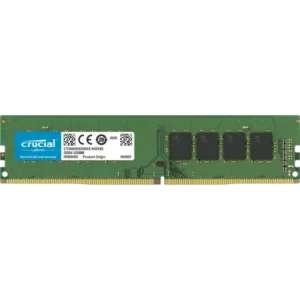
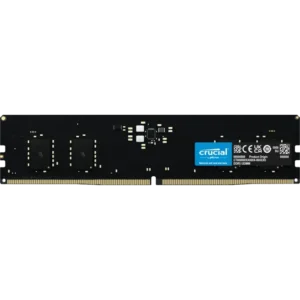
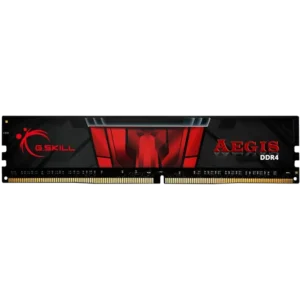
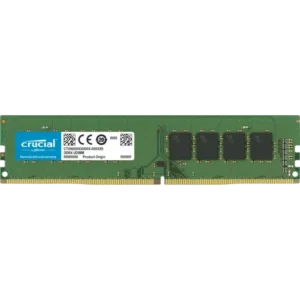
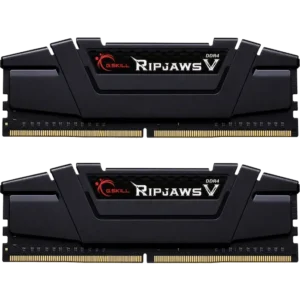
Desktop memory (also known as UDIMM) are designed for regular consumer desktop motherboards and is the most common memory you will find. You will find these available as singular DIMMs or available in kits. UDIMMs are unbuffered DIMMs, meaning there is no buffer or register between the memory controller and the memory chips, so your CPU’s memory controller communicates directly with the memory chips on the DIMMs.
Desktop RAM (CUDIMM)
CUDIMM is very similar to UDIMM, but is designed specifically for newer platforms like Core Ultra Series 2 Desktop CPUs. These modules include an integrated clock driver that improves signal integrity and stability at higher operating frequencies. It is important to check your motherboard accept CUDIMMs before purchasing.
Workstation & Server RAM (RDIMM)
RDIMMs are primarily designed for high end workstations and servers systems. RDIMMs include a register, or buffer, between the CPU’s memory controller and the memory chips to stabilise the signal and load of the memory modules. These DIMMs often support ECC (Error-Correcting Code) which help to detect and correct data corruption for improved reliability and can prevent unnecessary system downtime.
Laptop RAM (SODIMM)
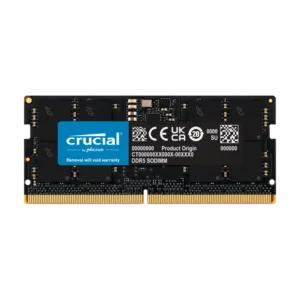
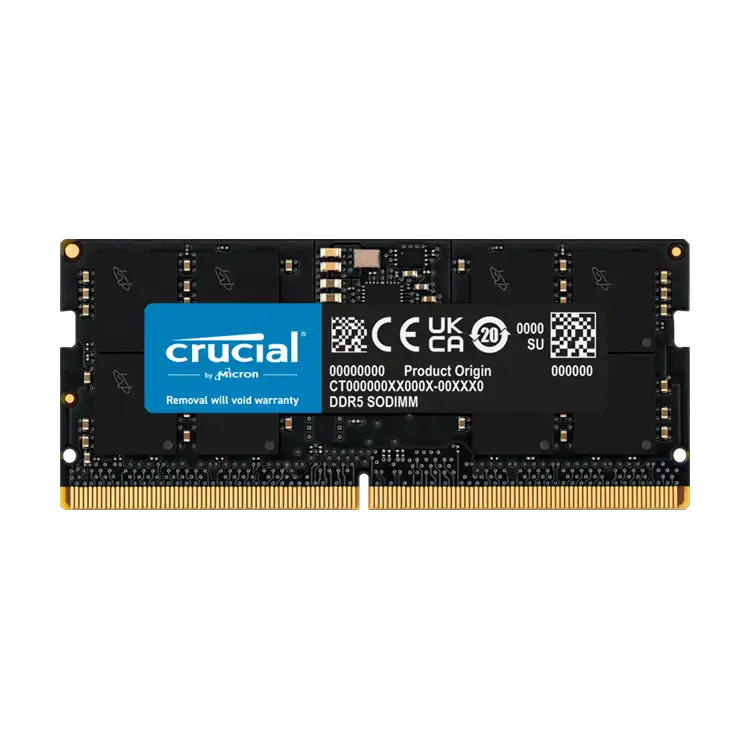
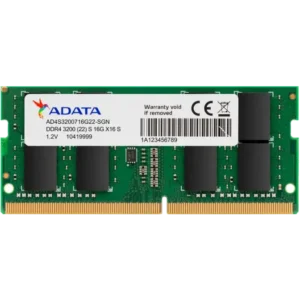
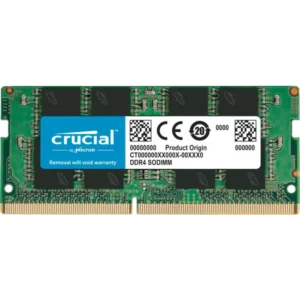
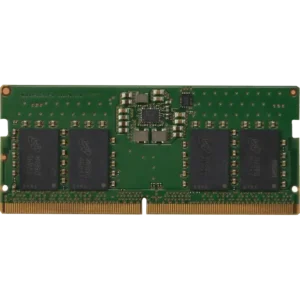
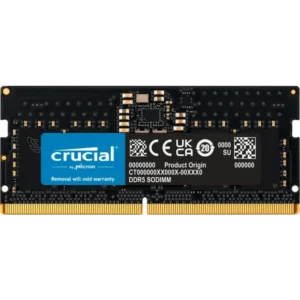
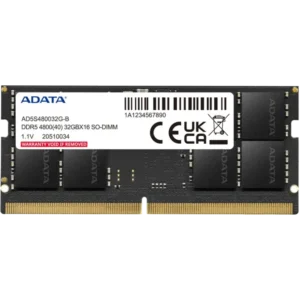
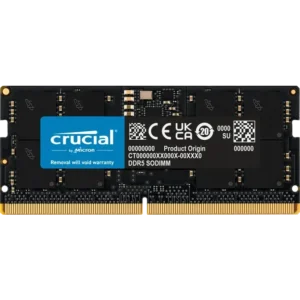
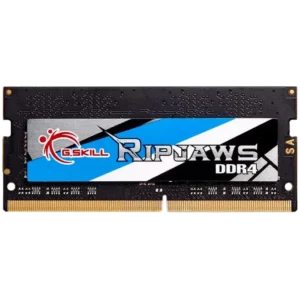
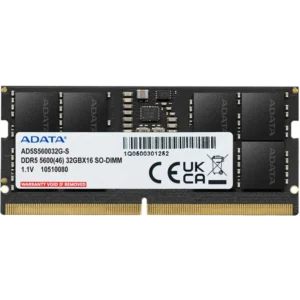
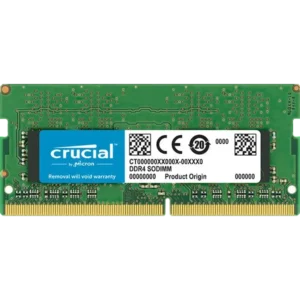
SODIMMs are commonly the memory modules used in laptops or compact devices like Mini PCs and some All-in-One Desktop PCs. SODIMM modules are typically around half the length of desktop DIMMs making them ideal for smaller devices. When upgrading devices like laptops, check if your device uses SODIMM memory to see if it can be upgraded. Some devices have soldered memory preventing upgrades.
ECC vs Non-ECC Memory: Do you need it?
While ECC memory is typically the most stable option, only specific motherboards and CPUs support these modules and the DIMMs themselves are usually very expensive. In most cases, everyday home & office will be fine with non-ECC memory. Gaming and many Workstations PCs will also usually benefit from non-ECC memory as it offers higher clock speeds for better performance.
What are Memory Channels: How many sticks should you buy?
Memory channels and the physical amount of memory slots on your motherboard are different. Memory Channels are determined by the CPU, and this is how many channels your CPU can communicate with simultaneously. For example, your motherboard might have 4x slots (2x slots per channel).
If you have a common desktop CPU, your CPU and motherboard probably support Dual Channel memory. With newer DDR4 and DDR5 platforms, it is highly recommended to opt for a kit of 2x of the same modules especially if you plan on using EXPO/XMP for max speeds. Filling all 4x slots will usually cause your memory to run at its base memory speed and can fall below the base speed to achieve compatibility.
High end workstation platforms can often support, 4 or 8 channel configurations where memory speed and reliability are important.
RAM Specs: Speed, Timings and Profiles
Memory Speed/Frequency
Memory speed is commonly measured in MT/s (Mega-transfers per second) which measures the volume of data moved per second. All memory has a base speed. DDR4 is typically 2133MT/s and DDR5 is typically 4800MT/s.
XMP and EXPO Profiles (One-Click Overclocking Done Safely)
Memory kits that advertise higher speeds than the base ram speed refer to their max rated speed which can be achieved with EXPO or XMP profiles if the motherboard and CPU are compatible. If a motherboard and CPU both advertise XMP and/or EXPO, that doesn’t guarantee compatibility. It is best to check if the memory had been tested with your motherboard and CPU. You can do this by going to the motherboard manufacturer website and finding the support > memory section. This will allow you to paste the model number of your RAM and confirm if it’s been tested with this motherboard and series of CPU.
CL Rating
The CL (CAS Latency) rating refers to the number of clock cycles your RAM must wait before it can start sending data after the CPU requests it. The lower this number, the better depending on the task and platform.
RAM for Different Uses: Gaming, Everyday, Workstation
For everyday PCs, 8GB can be okay but 16GB is the easy recommendation. 16GB will allow you to open your everyday applications, browser tabs and a reasonable amount of background tasks loaded without any issues.
Entry level gaming PCs can be okay with 16GB but when you start to play more intensive games, have gaming applications open such as communication applications and browsers at the same time, 32GB can quickly become necessary to avoid slowing down your game.
For workstation use such as video editing and large rasterized photo editing 32GB and 64GB are usually necessary to avoid long loading times. If you are using a workstation CPU and running local AI models, depending on the model, 64GB+ will usually be necessary to load the models into RAM and still be able to use your PC for working tasks.
RAM Installation and Upgrades
Before ordering RAM, check whether your device/motherboard accepts DDR4 or DDR5.
When upgrading a desktop PC, you should identify how many slots are available on your motherboard. If you already have RAM and are looking to expand your capacity, keep in mind modern CPUs with dual channel motherboards rarely support 4x DIMMs at full speed. You can check your motherboards manufacturer webpage under the support > memory section to see if your memory is compatible and at what speed/configuration. If you just need capacity, try and purchase the exact same model number as your existing kit. If you need extra capacity and full memory speed, you will likely need to replace the existing kit of RAM with 2x Higher density modules instead of adding to your current memory.
When upgrading a laptop or Mini PCs memory with SODIMM, the exact model of RAM is not as important as desktop. Just make sure to see if your device supports SODIMM memory upgrades and whether it’s DDR4 or DDR5.
There are popular tools available for free online such as ‘memtest’ which tests your memory for any issues. It’s always good practice to do this when upgrading or setting up a new PC to make sure your memory isn’t faulty or incompatible.