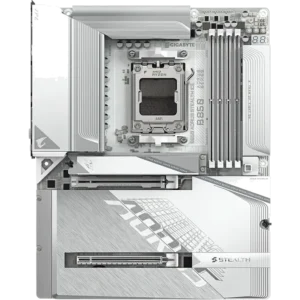
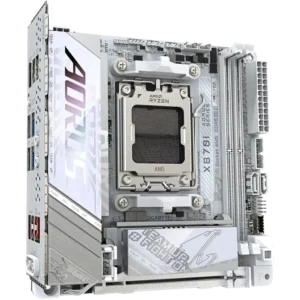
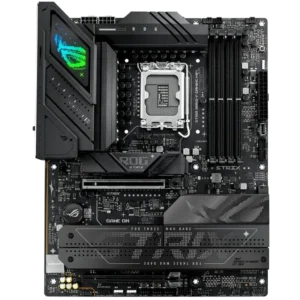
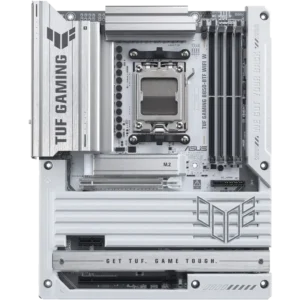
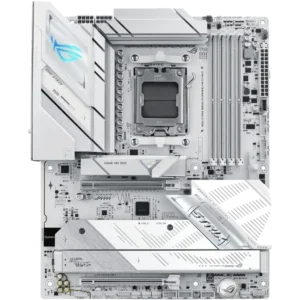
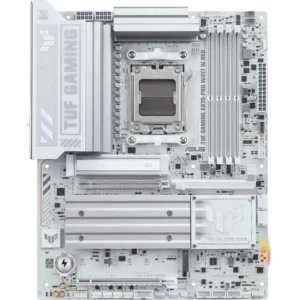
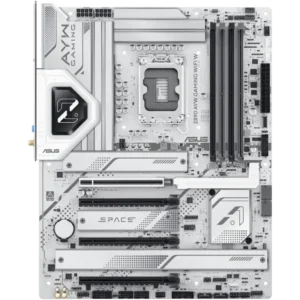
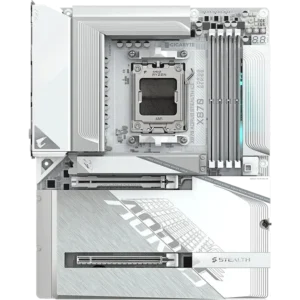
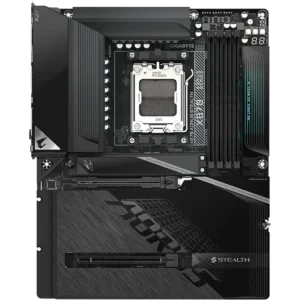
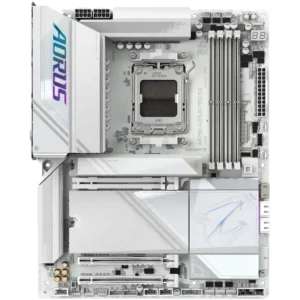
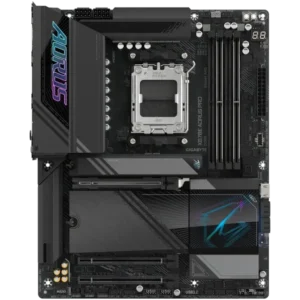
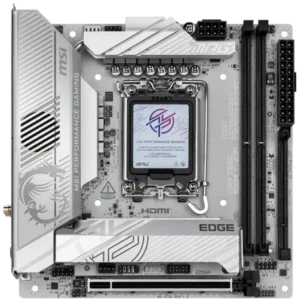
Choose the Right Motherboard for Your Build, Not Just Your CPU
A motherboard does more than hold parts together. It changes what your system can do now and in the future. A better board can mean:
- More slots, more ports, and better storage options.
- Built-in Wi-Fi, Bluetooth and faster LAN.
- Better VRM cooling, support for more fans or additional headers for RGB devices
- Stronger power delivery and VRM design for stable CPU performance.
- Easier upgrades, and support for RAM SSDs and future processor releases.
This is why two systems with the same CPU can feel different. A budget motherbord can be perfect for a simple home/office build. For Gaming PCs, Workstations or enthusiasts, opting for a motherboard with better VRM cooling, newer PCIe Generation Support and faster memory speed support can be a great choice to maximise performance now and be suitable for future CPU upgrades.
Motherboard & CPU Matching Made Easy (AMD & Intel)
Start with the CPU, then match the motherboard socket:
- AMD Ryzen 7000, 8000, 9000 Series CPUs - AM5 Motherboard Socket
- AMD Ryzen 1000 to 5000 Series CPUs - AM4 Motherboard Socket
- Intel Core Ultra Series 2 CPUs - S1851 Motherboard Socket
- Intel Core 12th, 13th, 14th Generation CPUs - S1700 Motherboard Socket
What is a Motherboard Chipset and which one should I choose?
Motherboard chipsets can be confusing but to summarise, the better motherboard chipsets offer more bandwidth to your CPU. How the bandwidth is taken advantage is different for every motherboard model. Some models, may allocate more bandwidth so the motherboard has more USB ports/Faster USB ports, more than one LAN port, more SSD slots or SATA connectors. One advantage to opting for a better chipset is these motherboards often include other features like more VRM cooling and better power designs.
The easiest way to make a decision is to pick a chipset that is suitable for your most intensive use case and includes the features you need. You can refer to the following for a basic summary of the mainstream chipsets below.
- AMD A-Series Chipsets / Intel H-Series Chipsets: These are entry chipsets which are most suitable for entry level builds that don't require a lot of expandability and won't be under full load for long periods of time. These chipsets may include no/basic VRM cooling, include a small number of USB ports, capability for 1x M.2 SSD and sometimes older generations of Wi-Fi, and only include space for 2x Memory DIMMs.
- AMD B-Series Chipsets / Intel B-Series Chipsets: B-Series Chipsets can be useful for home/office users who want some more expandability. Motherboards with these chipsets can include more USB ports, up to 4x Memory Slots, more than 1x M.2 Slot and faster PCIe Generations than H-series. Higher end B-series motherboards are often suitable for gamers as they can include VRM heatsinks to help keep your motherboard cool while supplying continuous load to your CPU.
- AMD X-Series / Intel Z-Series Chipsets: These higher end chipsets are suitable for gamers, workstations or enthusiasts who want the best of all the features. Motherboards with these chipsets will typically have the highest end features available at the time of their release. These motherboards can have support for the top USB-C spec on the back of the motherboard, more I/O, 3+ M.2 slots, latest PCIe generations, latest Wi-Fi generation. These are typically designed to facilitate high end CPUs, thermally and for maximum performance.
Motherboard Sizes Explained
When choosing a motherboard, it is important to make sure it will physically fit in your case. If you have a specific case you want to build your system in, make sure to pick the right size motherboard, especially if you're building a smaller PC. Common Motherboard sizes are as follows:
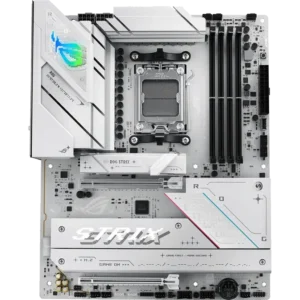
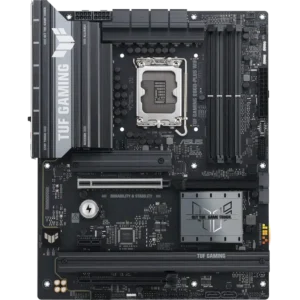
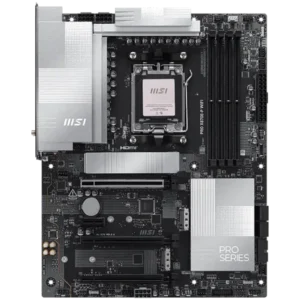
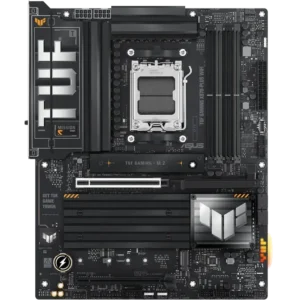
- ATX / E-ATX: ATX motherboards are the standard size layout that all ATX cases use. ATX sizes usually have the most room for expandability. E-ATX motherboards are the same height and use the same screw layout as ATX boards, but are usually wider and may offer more features. If you choose an ATX case, with an E-ATX motherboard, make sure there is enough space to accommodate the additional motherboard width.
- Micro-ATX: These motherboards are a practical middle ground as they usually offer most of the necessary features. Micro-ATX sizes are typically expected to be as wide as the ATX form factor but shorter. While smaller, these can typically be used in an ATX case or in a smaller Micro-ATX case for a smaller PC.
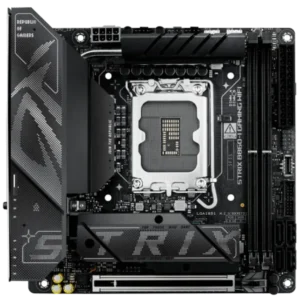
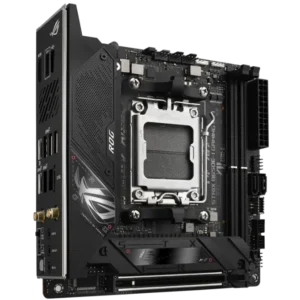
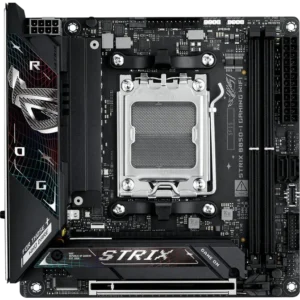
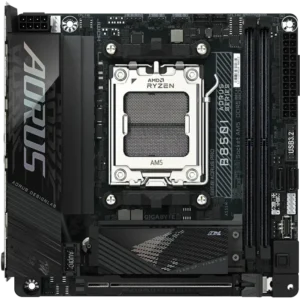
- Mini-ITX: While these motherboards can fit in larger cases, it's fairly uncommon to do so as these boards lack many of the internal connectors (such as fan and RGB headers) of a larger board, usually while being more expensive. These boards are designed for Mini-ITX cases for those seeking a compact PC. Mini-ITX boards typically feature 2x memory slots, 1x PCIe 16x Slot and usually no more than 2x M.2 SSD slots.
What Features Should You Look For?
Internal Connectors,Ports and Rear Panel I/O
It's important to make sure your motherboard will support all of your case connections. Make sure to check the following:
- Front-panel USB-C Header: If the case you've decided on has USB-C on the front, it's important to make sure your motherboard has a front-panel USB-C Header. Some budget boards don't include this header.
- Front-panel USB-A Headers: There two types of internal connectors for front-panel USB-A ports. Most motherboards include one or two USB 2.0 internal headers which can be used for case front-panel USB-A connectors. Sometimes these internal headers are used for liquid coolers or internal controllers. USB 3.0/3.1/3.2 Internal connectors share a different type of internal connector designed to connect to your cases 3.X Type-A USB ports. Most motherboards and cases only have 1x of these internal USB 3.X connections, but if your case has more than two USB 3.X ports, be sure to look for a motherboard that has two internal USB 3.X internal connectors or some of your cases USB-A ports may not work.
- ARGB headers: If you've decided on a case with addressable RGB fans or lighting, you'll want to make sure your motherboard has some ARGB headers. Some cases include controllers or splitters. Some budget motherboards do not include these headers which may prevent your lights working.
Upgradable Storage
- M.2 Storage Slots: M.2 SSDs slot directly into your motherboard and offer signficantly faster read/write speeds than SATA drives. If you need more than 2x fast M.2 drives, consider looking for an ATX motherboard as they will have more space to accommodate these drives on the motherboard.
- SATA Storage Connectors: SATA drives may include 2.5" SATA SSDs or traditional Hard Disk Drives. Most motherboards will include at least 2x of these connectors and more on higher end boards. Keep in mind, occupying all SATA slots on some motherboards can disable M.2 Slots, so be sure to check the motherboard manual if you are using a large mix of M.2 and SATA drives.
- PCIe Storage Expansion: There are specific storage adapters that can be added into your motherboards x4/x8/x16 PCIe Slots to give you more M.2 Storage or additional SATA ports. Adding a large amount of drives to these add-in cards can reduce the number of PCIe lanes allocated to other PCIe devices (such as graphics cards). Depending on the graphic card and its use case, its performance might be reduced by using one of these add-in storage cards.
Picking Compatible Memory
Picking memory that is compatible with your CPU & motherboard is a bit trickier than picking the correct version of DDR4 or DDR5. Checking the motherboards QVL (qualified vendor list) will show a list of memory kits that are tested to work and how many RAM DIMMs are rated to work. You can also check the product page for the RAM to check which motherboards are tested to work with that kit. Picking a kit of memory that isn't on the QVL for your motherboard often results in system not posting, blue screens in windows, issues using XMP/EXPO profiles.
Connectivity: Wi-Fi, Bluetooth & LAN
Consider how you plan to connect your PC to the internet.
- RJ-45 Port: All mainstream motherboards include at least 1x RJ-45 port to physically connect your PC to your network. Different motherboards can include faster LAN speeds from 1Gbps up to 10Gbps. 1G/2.5G ports are fine for most Australian internet connections but faster LAN ports like 5G or 10G may be more beneficial if you have a fast NAS or network drive that you do a lot of file transfers to/from.
- Wi-Fi: Some motherboards include Wi-Fi but many cheaper motherboards do not. If this is a feature you need, you should look for which Wi-Fi version matches your type of router at home or better. Wi-Fi Types include Wi-Fi 5, Wi-Fi 6/6E or Wi-Fi 7. Choosing the type of Wi-Fi your router has or better ensures you will get the best available speeds with the lowest possible latency over wirelss. If you choose a motherboard without Wi-Fi and later find yourself needing it, you can purchase additional add-in Wi-Fi adapters which connect to your available PCIe slots. If you have a graphics card or other PCIe devices, just make sure there is room for it to physically fit.
- Bluetooth: Bluetooth can be a quick and easy way to connect your peripherals but not every motherboard includes bluetooth. When purchasing a motherboard with Wi-Fi built-in, it will often also include a Bluetooth.
Display Outputs for onboard Graphics
If you have chosen a CPU with onboard graphics AND don't plan to use a dedicated graphics card, you will want to choose a motherboard with enough display outputs for your monitors. If you are using a dedicated graphics card, you don't need to worry about what display outputs your motherboard has, as you should connect your displays to the dedicated graphics card.
Motherboard FAQs for First-Time Builders & Upgraders
Do I need to upgrade my motherboard and RAM if I upgrade my CPU?
Sometimes, yes. If the new CPU uses a different socket, you will likely need to update your motherboard and potentially memory. For example, upgrading from an AMD Ryzen 5 5600 (socket AM4) to an AMD Ryzen 9 9900X (socket AM5) means the new CPU will not be compatible with your old motherboard. AM4 motherboards all use DDR4 RAM and AM5 motherboards require DDR5 RAM so you would also need to buy a new motherboard and memory.
Upgrading on the same socket is usually easier, as you can keep your RAM and motherboard, but you should always check your motherboards manufacturer website to make sure the new CPU is compatible. Chances are it will be, but your motherboard will need a BIOS update to communicate with the new CPU. Keep in mind if you are upgrading your CPU for a specific feature (like PCIe Gen5 support), the older motherboard also needs to support that feature, so you may need to upgrade the motherboard if you want a specific new feature of the new CPU.
What's the best motherboard for gaming vs productivity?
For gaming, look for a motherboard that matches your CPU. If you've chosen a high-end CPU, consider a motherboard that includes a strong VRM design and has heatsinks to keep VRMs cool. This will ensure your CPU will operate at its optimal efficiency while under load. Also look for a motherboard that will include enough M.2 Storage incase you need to add more SSDs for or media. Check how many USB peripherals you have and make sure there are enough ports on the motherboard.
How do I know it will fit my case and parts?
Check four fitlers first:
- CPU Socket: This will ensure the CPU you have chosen will firt in the motherboard socket.
- Form Factor: This will narrow the range down to the ones that will fit in your case. If you have an ATX case, you could show options for Mini-ITX, Micro-ATX and ATX sizes for example.
- Wi-Fi Standard: If you need Wi-Fi, select the Wi-Fi standard your router uses or better to ensure you get the best possible connection
- You can use our other extensive filters to find motherboards with a specific amount of USB ports, LAN Speed, RAM type, Display outputs and more.
Make sure the motherboard you have selected is compatible with your memory. You can search the manufacturer page for your memory to see if it is compatible with this motherboard or search the memory model number on the motherboard manufacturer page under support > compatibility.