Laptop RAM Buyer’s Guide
What Is Laptop RAM?
RAM (Random Access Memory), often simply called memory, is your laptop’s short-term workspace. It temporarily stores the data and programs your computer is actively using, allowing the processor to access them quickly.
More RAM can help your laptop run multiple applications, browser tabs and background tasks without slowing down. It is particularly useful for gaming, content creation, large spreadsheets, virtual machines and other demanding workloads. Unlike an SSD, RAM only stores data while your laptop is powered on.
How Much Laptop RAM Do You Need?
8GB: Basic Everyday Use
8GB is the minimum for light everyday use. It can handle basic web browsing, email, office applications and study, but may become limiting when you have multiple applications or browser tabs open.
16GB: The Best Choice for Most People
16GB is the practical choice for most laptop users. It provides enough memory for everyday work, study, multitasking, video calls and general productivity without paying for capacity you may not use.
32GB: Gaming and Demanding Workloads
32GB is well suited to gaming laptops, heavier multitasking, content creation, programming and more demanding professional applications. It also provides useful headroom for keeping a laptop capable for longer.
64GB or More: Mobile Workstations
64GB or more is generally best for mobile workstations and specialised workloads such as large media projects, virtual machines, engineering applications, large datasets and local AI workflows.
Before purchasing, check the maximum amount of memory supported by your laptop. Some models may limit the total capacity or the amount supported in each memory slot.
Laptop RAM Types: What Fits Your Device?
Laptop RAM (SODIMM)
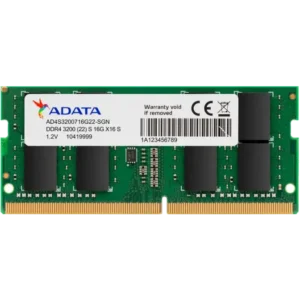
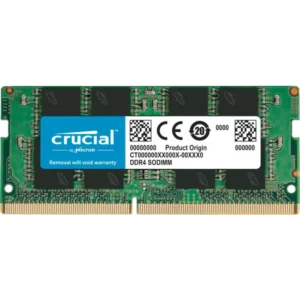
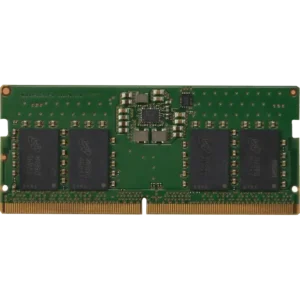
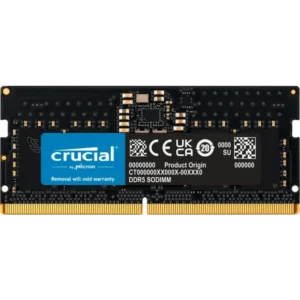
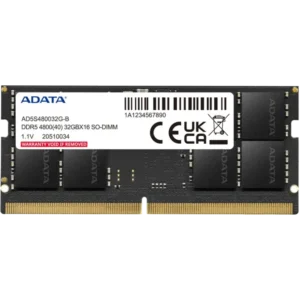
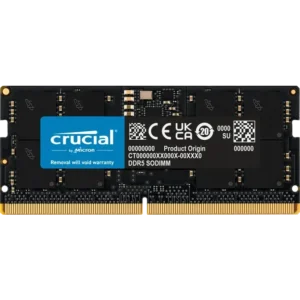
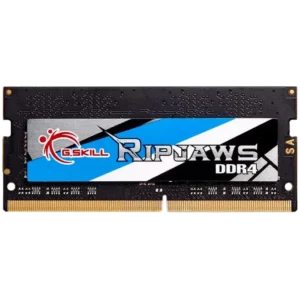
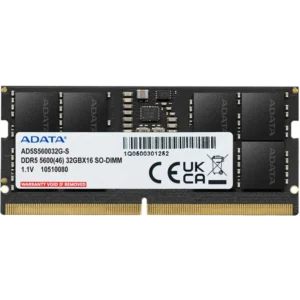
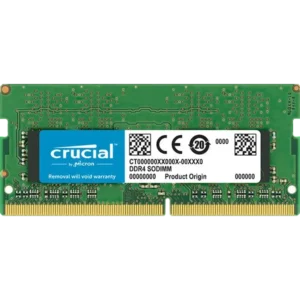
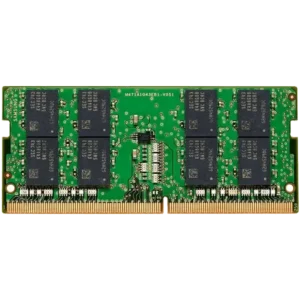
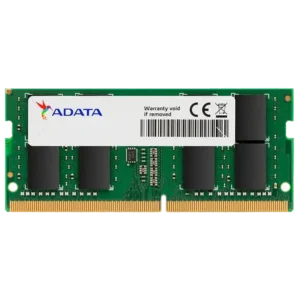
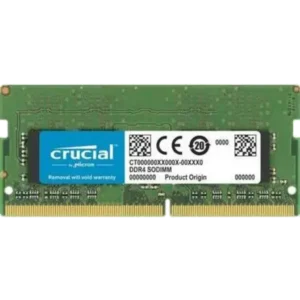
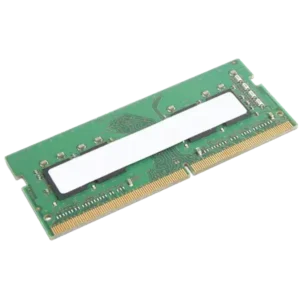
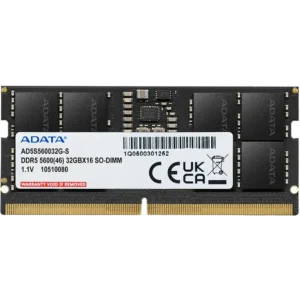
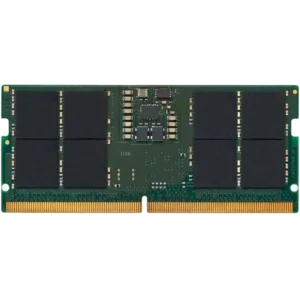
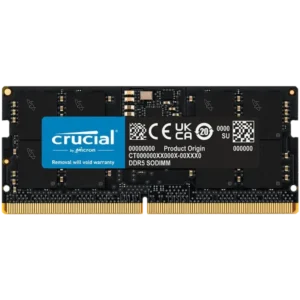
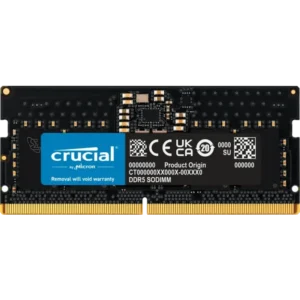
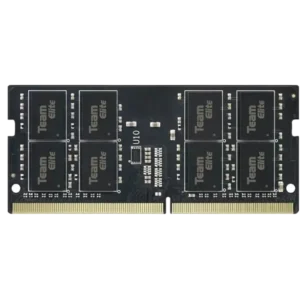
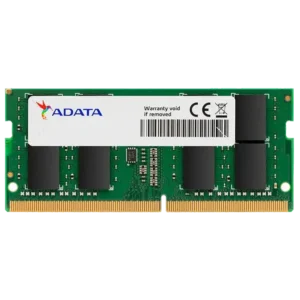
Most upgradeable laptops use SODIMM memory. SODIMMs are smaller than the DIMMs used in desktop computers, allowing them to fit inside laptops, Mini PCs and some All-in-One computers.
Desktop DIMMs and laptop SODIMMs are physically different and cannot be used interchangeably. Make sure the memory you purchase is specifically listed as laptop or SODIMM memory.
DDR4 vs DDR5 Laptop RAM
Your laptop will support a specific generation of memory, such as DDR4 or DDR5. These memory types have different physical designs and are not interchangeable, so DDR5 memory cannot be installed in a DDR4 laptop and vice versa.
Check your laptop’s specifications, manufacturer support page or existing memory before ordering an upgrade.
Soldered and Upgradeable Memory
Not every laptop allows its memory to be upgraded. Some laptops use memory that is permanently soldered to the motherboard, while others have one or more SODIMM slots.
A laptop may also combine soldered memory with a single upgradeable slot. In this situation, the soldered memory cannot be replaced, but additional capacity may be installed in the available SODIMM slot.
Before purchasing RAM, confirm:
- Whether the laptop supports memory upgrades
- Whether it uses SODIMM or soldered memory
- Whether it requires DDR4 or DDR5
- How many memory slots are available
- How many slots are already occupied
- The maximum supported capacity
- The supported memory speed
How Many RAM Sticks Should You Buy?
Many upgradeable laptops have two SODIMM slots, but some models only provide one slot or combine soldered memory with an additional slot.
Where possible, using two matching memory modules can provide the best compatibility and allow supported laptops to operate in a dual-channel configuration. For example, a 2 × 8GB kit may be preferable to a single 16GB module when both slots are available.
If your laptop only has one accessible slot, or already includes soldered memory, your upgrade options will depend on the laptop’s existing configuration.
Understanding Laptop RAM Specifications
Memory Capacity
Capacity determines how much information your laptop can keep readily available while applications are running. Adding more capacity can improve performance when your existing memory is regularly close to full.
However, installing more RAM does not automatically make every laptop faster. The biggest improvement is usually seen when the laptop currently does not have enough memory for the applications and workloads being used.
Memory Speed
Memory speed is commonly measured in MT/s, or mega-transfers per second. Your laptop will generally run memory at a speed supported by its processor and motherboard.
Installing memory rated for a higher speed does not guarantee that the laptop will operate at that speed. The laptop may run it at the highest speed supported by the system.
CL Rating
The CL, or CAS Latency, rating refers to the number of clock cycles the memory waits before it begins responding to a request. A lower CL rating can indicate lower latency when comparing otherwise similar memory, but compatibility, capacity and the supported memory speed are normally more important when selecting laptop RAM.
XMP and EXPO Profiles
Unlike many desktop systems, laptops generally offer limited support for memory overclocking profiles such as XMP and EXPO. Memory advertised at a higher profile speed may operate at a lower standard speed if the laptop does not support that profile.
For most laptop upgrades, prioritise memory that can operate at the standard speed supported by the laptop rather than relying on an overclocking profile.
Laptop RAM for Different Uses
Everyday Work and Study
For web browsing, email, office applications, study and video conferencing, 16GB is the best starting point for most users. It provides enough capacity for everyday multitasking without becoming restrictive too quickly.
Gaming Laptops
16GB can be suitable for entry-level and general gaming, while 32GB provides additional capacity for demanding games, communication applications, browsers and background software.
Before upgrading a gaming laptop, check whether it has replaceable SODIMMs and whether both available memory slots are already occupied.
Creative and Professional Laptops
Photo editing, video editing, software development, engineering applications and similar professional workloads can benefit from 32GB or 64GB of memory.
Large projects, virtual machines, high-resolution media and local AI workloads may require even more capacity, provided the laptop supports it.
Upgrading Laptop RAM
Before ordering laptop memory, identify the exact laptop model and check the manufacturer’s specifications or service documentation.
You should confirm:
- Whether the memory is upgradeable
- Whether the laptop needs DDR4 or DDR5 SODIMMs
- The supported memory speed
- The number of available memory slots
- The maximum capacity per slot and for the laptop overall
- Whether opening the laptop affects any warranty or service conditions
If you are adding memory alongside an existing module, using the same capacity and specifications is recommended where possible. A matched kit can be a better option when replacing all the laptop’s existing memory.
After installation, check that the full capacity is recognised by the operating system. Running a memory diagnostic test can also help identify a faulty or incompatible module.